About the library
Gaohf Library is a cloud library. Search by title, author, or publisher, read PDF, EPUB, and TXT online, and publish ebooks you have the right to share.
Without an account you can still browse covers and details, read a text preview of about the first 20 pages, and use Read without registering on books that allow online reading. After you register and activate your email, you can read the full book, download when the uploader allows it, save favorites, rate, comment, and upload your own ebooks.
Read
The library, book pages, the full reader, and guest reading.
Find
The top search, categories, format and language filters, and AI when nothing matches.
Share
Send a link to a book already here, or upload your own PDF, EPUB, MOBI, or TXT.
Also
File storage, reviews, book requests, standards, vocabulary, the blog, a satellite map, and an Android app.
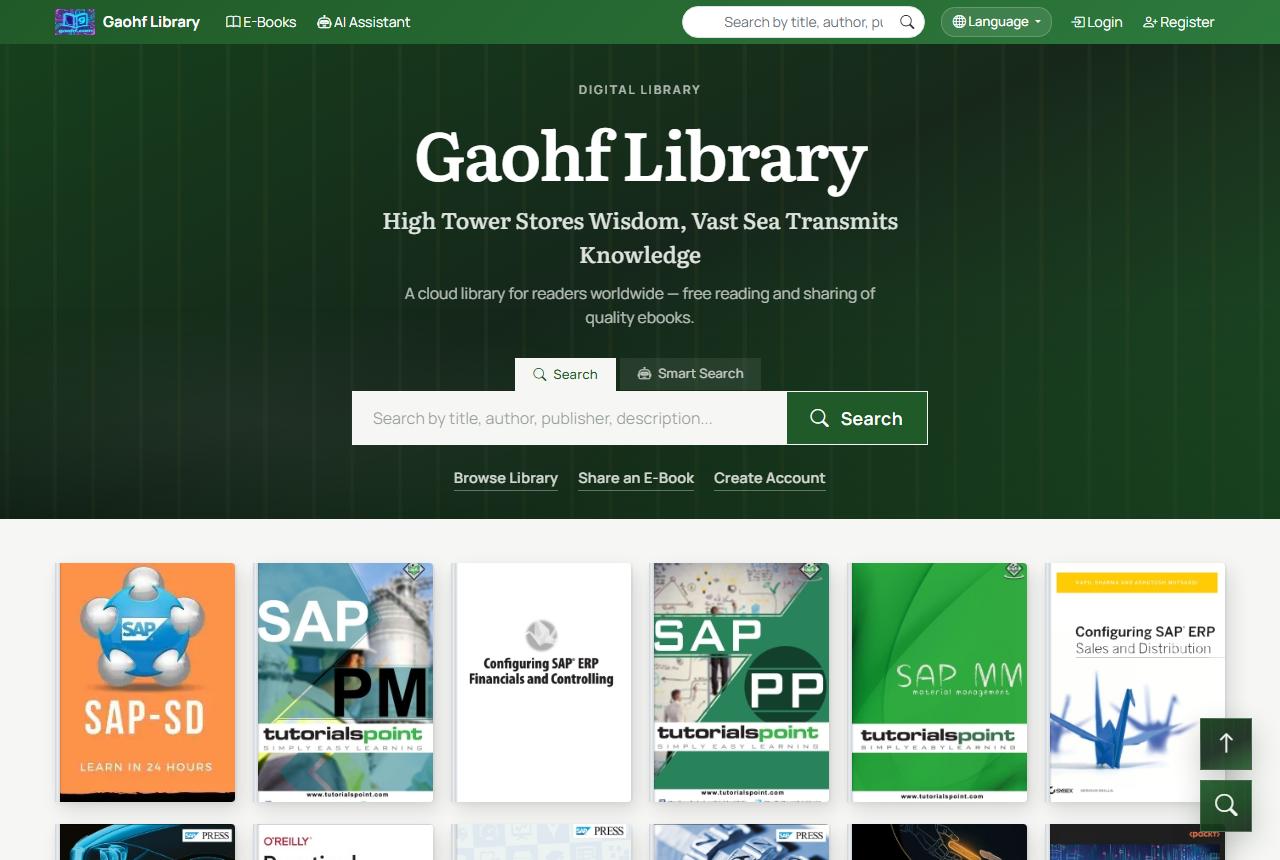
Start here
Type a title, author, or publisher on the home page or in the top bar.
Read the description and the 20-page preview, or start guest reading.
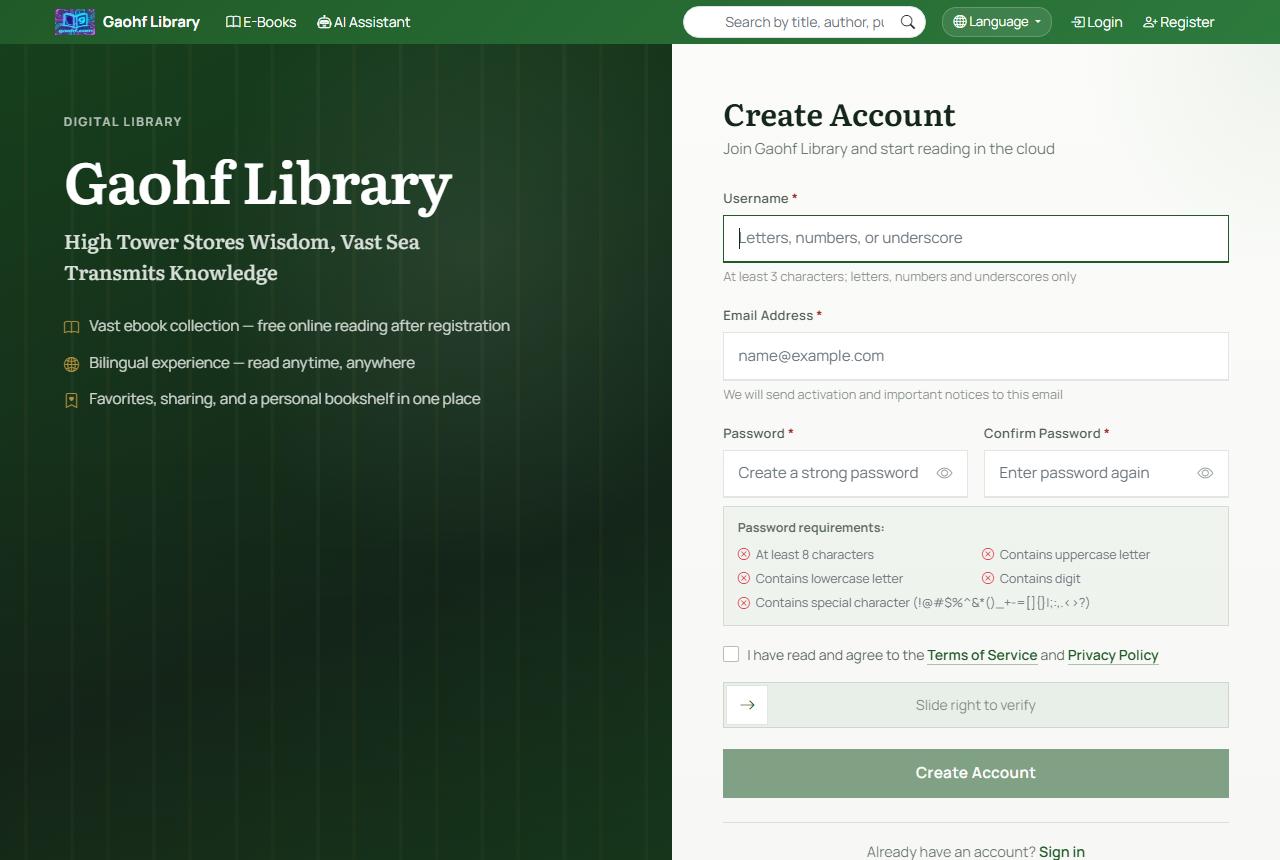
Choose a username, email, and password, then open the link in your inbox.
Use Read online. To contribute a book, open Share an e-book from your menu.
Create an account
Open the registration page. You will need:
- Username: 3 to 32 characters, letters, digits, and underscores only.
- Email: used for the activation message and notices. Use an inbox you can open.
- Password: at least 8 characters, with an uppercase letter, a lowercase letter, a digit, and a special character. The form marks each rule as you type.
- The same password again, plus agreement to the Terms of Service and Privacy Policy.
- Drag the slider to the right. Submit stays unavailable until the slider is complete.
After you submit, open the activation link in the email. Check spam if it does not arrive. Both the success screen and the sign-in page can resend it. Sign-in works only after activation. A new account receives 10 points.
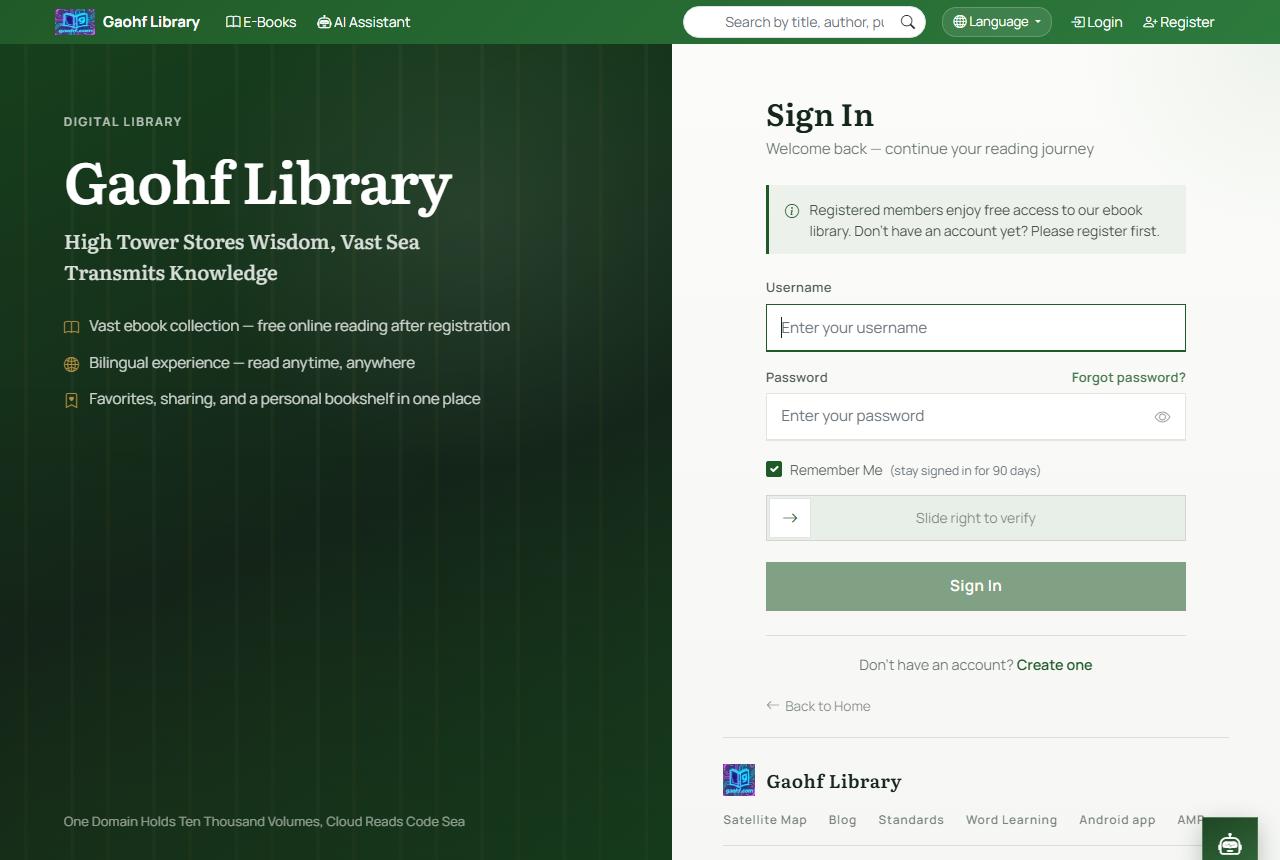
Sign in
Open Sign in, enter your username and password, slide to verify, then submit.
- Remember me is on by default and keeps you signed in on this browser for about 90 days. Turn it off on a shared computer.
- Forgot your password: open password reset and follow the email.
- If the account is not activated yet, enter your email on the sign-in page and resend the message.
- Sign out from the account menu.
Search
Three places search the same catalog:
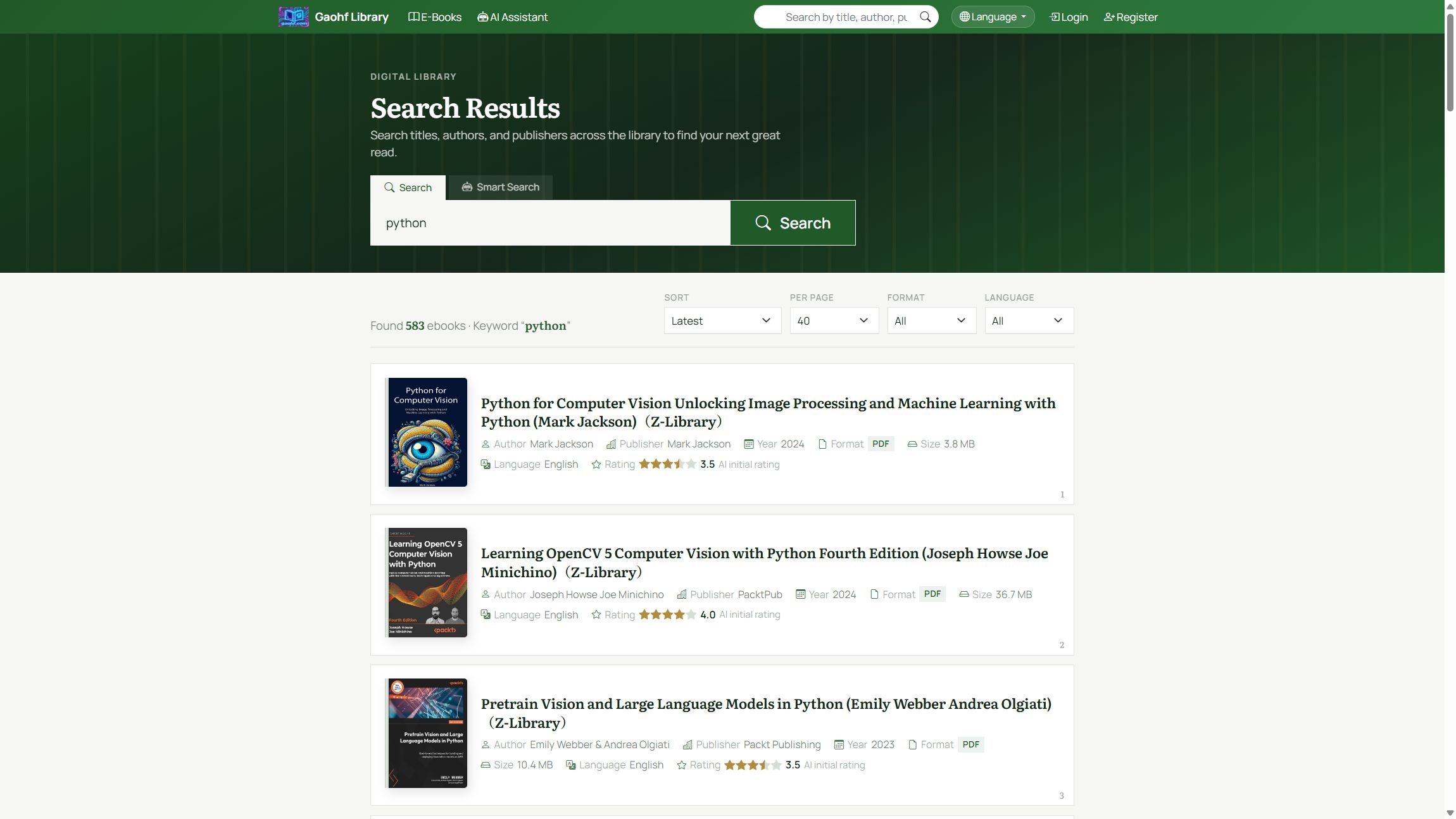
- The box in the top bar. The icon on its left switches between ebooks and book reviews. Ebook search matches title, author, and publisher. Press Enter or the magnifying glass.
- The search on the home page and in the library. You can switch it to smart search.
- A results address such as /search/ebooks?search=python. Replace
pythonwith your words.
On the results page, sort by newest, most popular, most downloads, title, author, year, file size, or AI rating. Filter by format and language, and choose how many rows to show. The library can also be browsed by category.
When nothing matches, the page suggests other words and offers Ask the AI assistant, which looks through indexed books.
Browse and read
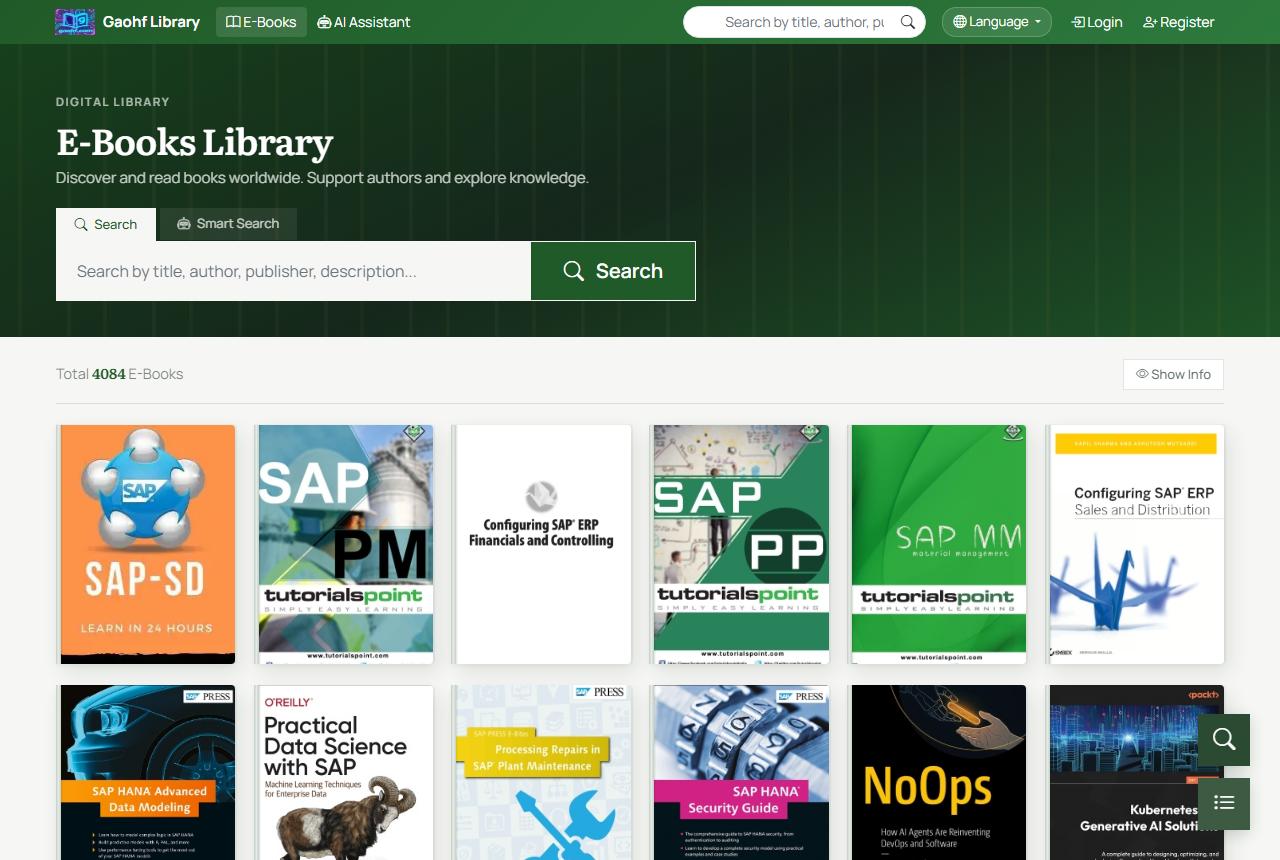
The home page lists recent books as you scroll. The library is a wall of covers; the toolbar can show or hide title and author. A book’s address looks like /ebooks/4089. The number is that book’s id.
A book page usually includes:
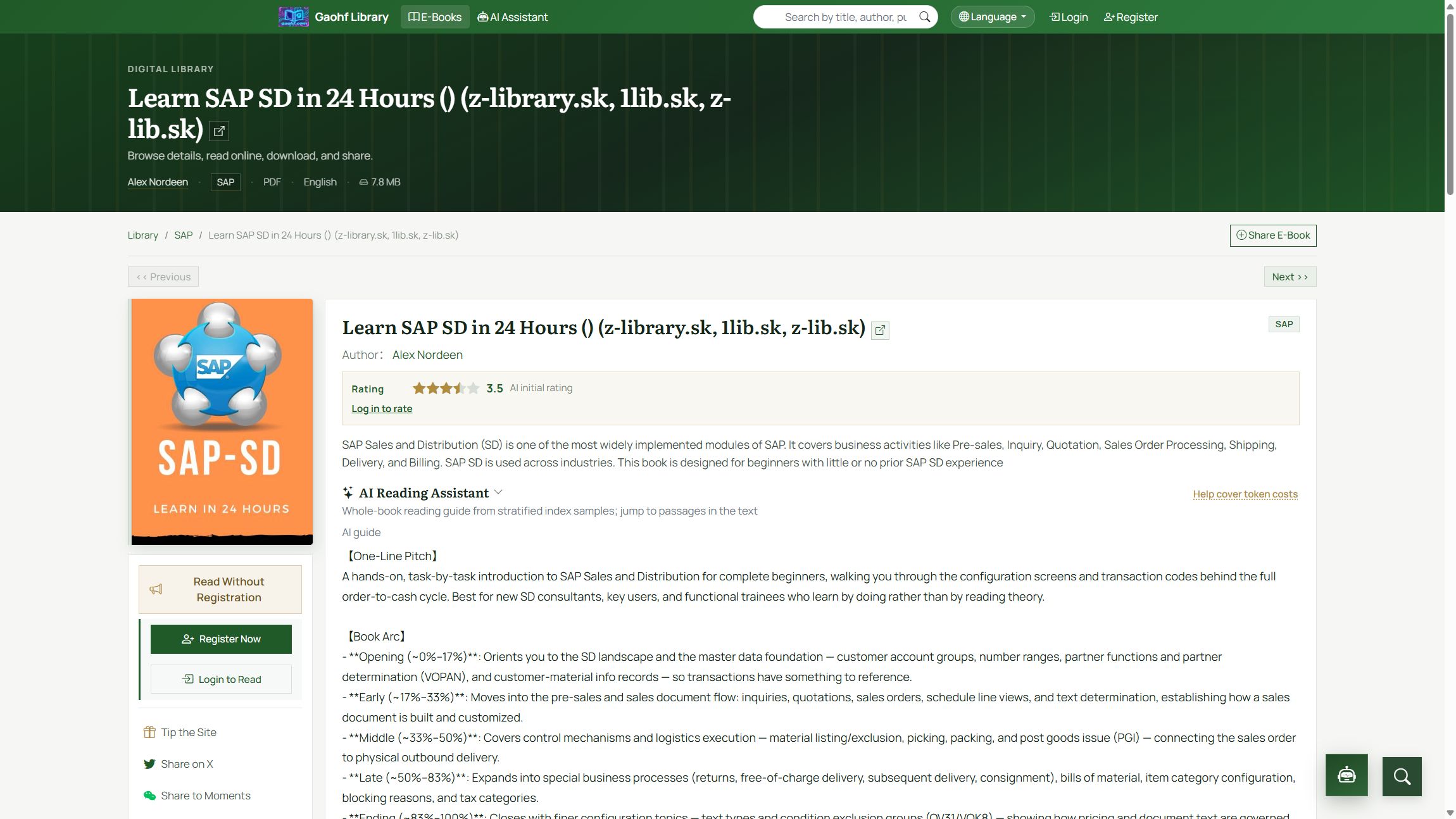
- Cover, title, author, category, and description.
- Read online, once you are signed in and the uploader allows online reading. It opens the full reader.
- Read Without Registration when you are signed out, plus Register Now and Login to Read.
- Download, only when the book allows it and you are signed in.
- Save to favorites and Want to read, after sign-in.
- A small tip to the library by WeChat or Alipay. Sign-in is not required for that.
- Share, rating, comments, and tags.
- A text preview, usually the first 20 pages, with a note that a free account unlocks the rest.
- An AI reading guide when the book is indexed, with jumps into the text.
The full reader opens PDF, EPUB, or plain text. Its side panel shows the book record. You can rate, save a favorite, and download when that is allowed. Visits are kept in reading history.
Read without an account
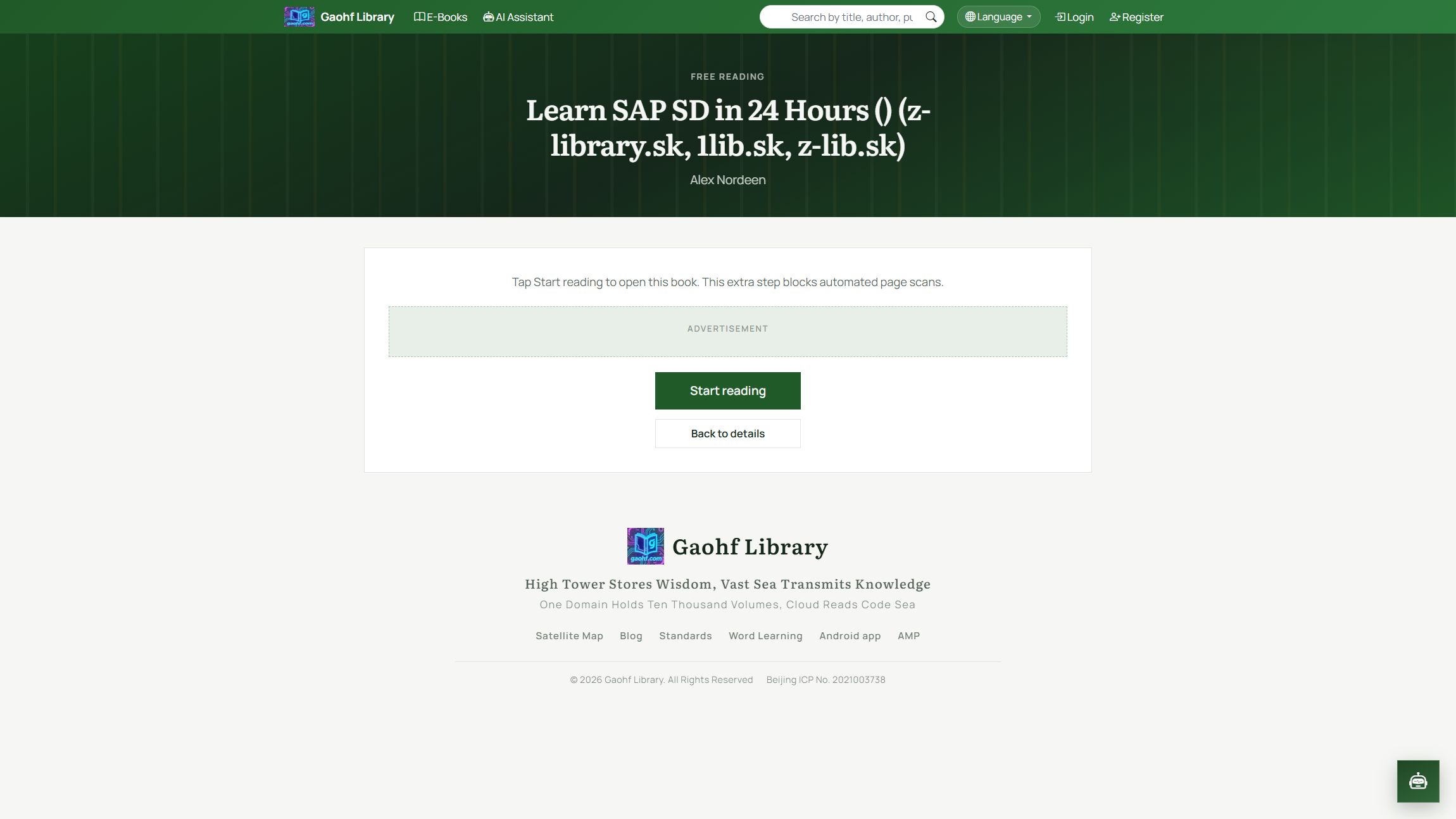
On a book page, choose Read Without Registration, or open /ad-reader/ plus the book id. The book must be public and must allow online reading.
- The first visit shows a short confirmation. Choose Start reading. That step only stops automated scanning. It does not ask you to click an ad.
- The page may show ads. They are display only. Reading continues whether or not you interact with them.
- A guest session for one book lasts about an hour. Opening another book starts a separate session.
- Inside the reader you can turn pages, zoom, and go full screen.
- Download requires an account. Register if you want favorites, history, and the full signed-in reader.
If you are already signed in and this book is open to you, guest reading sends you straight to the full reader.
Favorites and shelf
These live in the account menu and pick up where you left off:
- Favorites: use the heart on a book page. Each new favorite is +2 points.
- Want to read: mark a book for later. +2 points.
- Reading history: books you opened recently.
- Reading statistics: a summary of your reading.
- Recommendations: open to everyone.
- Search history: terms you have used.
The Lv. badge beside your name is your level. Every 100 points moves you up one level. Registration is +10, a comment is +5, and publishing an ebook is +20.
Share a book
This sends a book that is already in the library. It is separate from uploading a new file. On the book page:
- Link and QR code: copy the address, or let someone scan it on a phone.
- Email: send the book link to an address you enter.
- X and Weibo: open a composer that includes the link.
- WeChat Moments: scan the code to open the book, then use the top-right menu. If you are already inside WeChat, use that menu directly.
The other person lands on the book page. Without an account they can preview or use guest reading. After they sign in, they can read the full text when the book allows it.
Upload your ebook
After sign-in, open Share an e-book from the account menu, or go to /ebooks/upload. Accepted files are PDF, EPUB, MOBI, and TXT.
- Drop a file on the page, or choose one. You can also upload it as a file first, then pick it from files you already stored.
- The form tries to fill the title from the file name and suggests a category. Check the title, author, description, and category.
- Choose whether other people may download the file and whether they may read it online. Those switches control the buttons on the book page.
- Only upload a work you have the right to share. The library may remove infringing files and limit the account.
- Submit. The book is visible to every reader. Manage it later under My ebooks. A file in My files can also be published as an ebook.
Readers can leave a small tip by WeChat or Alipay on the book page. Publishing an ebook adds 20 points.
Look once more at the file before you publish it. After it is public, other readers can find it in the library.
Files and share links
Files that are not published as ebooks live in My files. The dashboard shows counts and recent uploads.
- Upload at /files/upload, or from the file list.
- Open a file to preview it. Images, PDFs, and common documents are shown in the page when possible.
- Share: choose Enable sharing and set no expiry, or 1 hour, 1 day, 7 days, or 30 days. Anyone who has the link can open and download the file.
- You can copy the link again or turn sharing off. Turning it off invalidates the old link immediately.
- A dead link usually means it expired, the file was deleted, or sharing was turned off.
Reviews and requests
- Book reviews can be read without an account. Writing one requires sign-in. Switch the top search to book reviews to find them. Yours are under My reviews.
- Book requests: if a book is missing, post the title, author, publisher, year, ISBN, and a note. Others can reply with a library ebook, a file, or an external link. Your posts are under My requests. Posting requires sign-in.
- Comments sit on the book page. Visitors can read them. Posting a comment is +5 points.
AI assistant
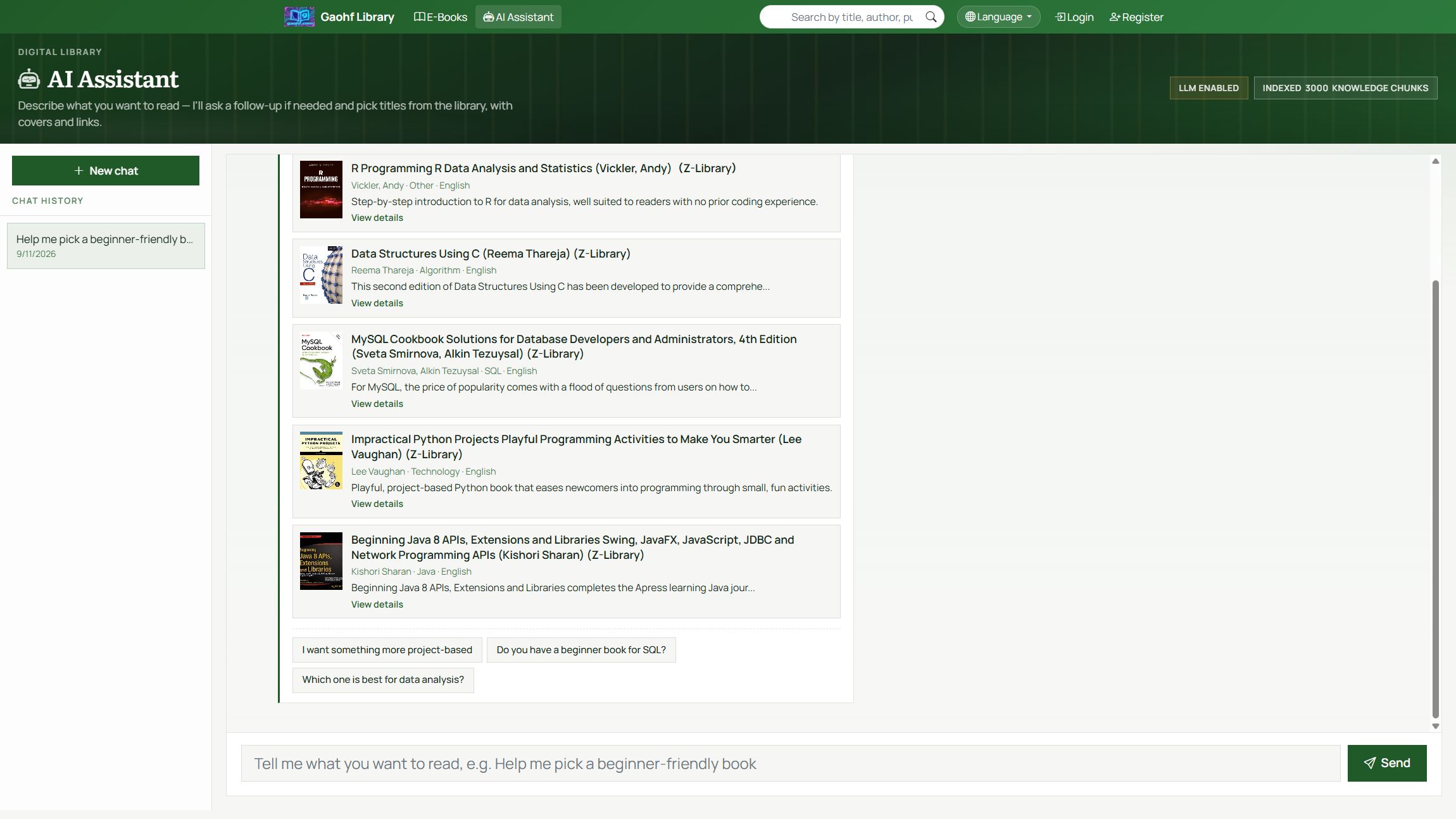
Open AI Assistant in the top bar, or the button at the lower right of most pages. The full conversation is at /ai/chat. Describe what you want in ordinary language: subject, language, or difficulty. Replies include covers and links into the catalog. If nothing is close, it will ask you to narrow the request.
On a book page, the reading assistant drafts a guide, highlights, and suggestions from that book’s index, and can jump to the passage. Chinese and English guides are generated once and then read from a local copy.
Account and VIP
- Profile shows the account. Edit profile changes the public details, and Change password is separate.
- The bell is Notifications. Mark them read in the menu, or open the full list.
- Dashboard: file counts, today’s uploads, and recent files.
- VIP removes Google ads from book pages and the reader, and supports the library. Reading books that are open to members does not require VIP.
- Site mailbox: you can open a mailbox on this site. Its password can differ from your sign-in password. Mail clients usually use the full address as the username.
Standards, words, and more
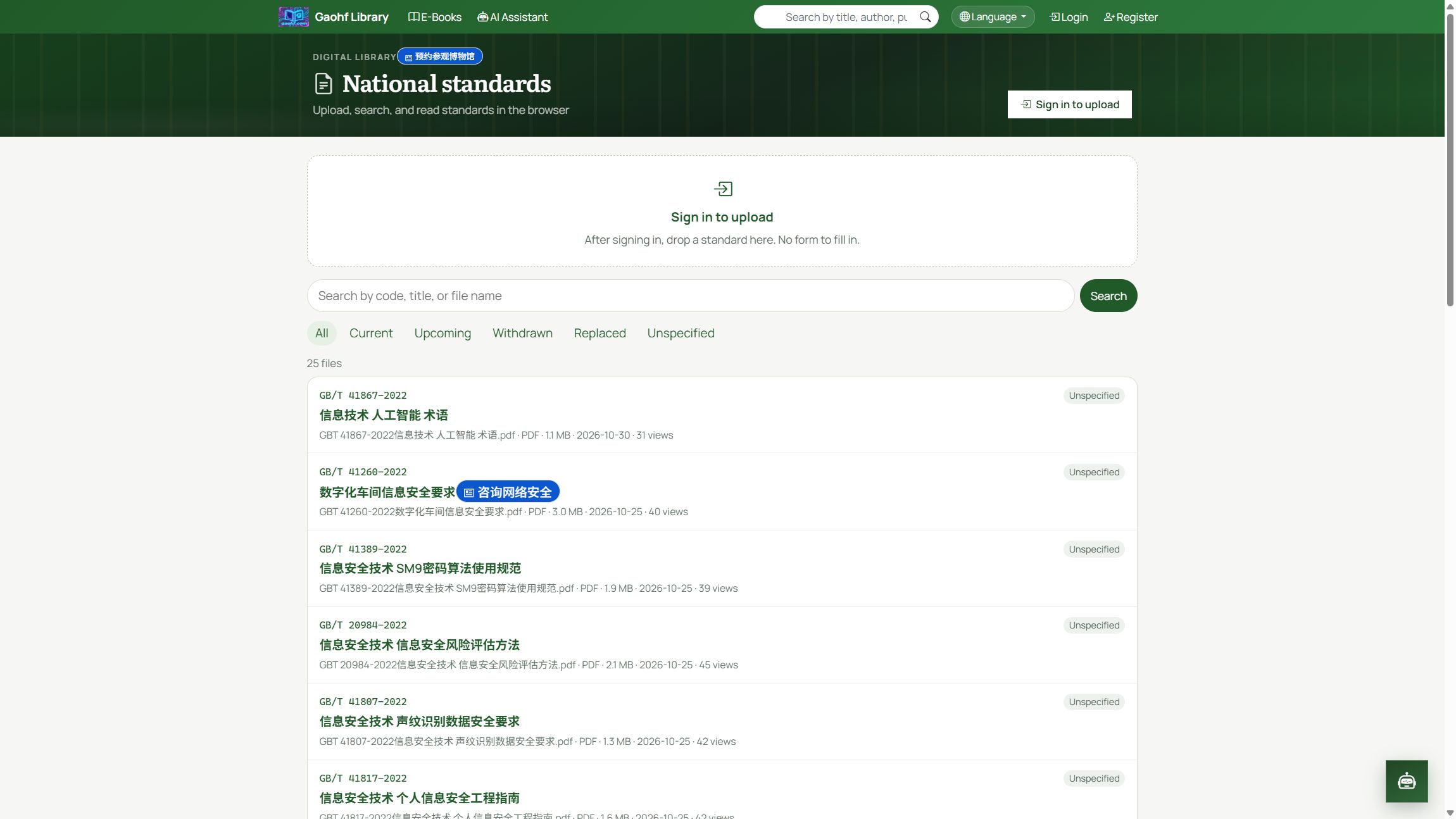
- National standards: search the collection and read PDFs in the page. Signed-in users can drop files in to upload.
- Word learning: words, meanings, and example sentences. Opening it while signed out goes to the sign-in page. Learning progress keeps what you have studied.
- Blog: the index and posts are public. Writing and managing your posts requires sign-in, from My blog.
- Satellite map: centered on Beijing, with zoom, reset, and full screen.
- Android app: linked in the footer. The app is built for immersive reading and supports face sign-in.
- AMP: the footer switches to the lighter pages. Home is /amp, and the library is
/amp/ebooks. Switch back to the Web version at any time. - Language: the globe in the top bar switches between 中文 and English, including this guide.
Page index
Put these paths after the site address. Replace the book id with the number in that book’s URL.
| What you want | Address | Sign-in |
|---|---|---|
| Home | / | No |
| This guide | /guide | No |
| Ebook library | /ebooks | No |
| Search ebooks | /search/ebooks?search=words | No |
| Book page | /ebooks/{id} | No |
| Full reader | /ebooks/{id}/read | Yes |
| Guest reading | /ad-reader/{id} | No |
| Register | /register | No |
| Sign in | /login | No |
| Forgot password | /forgot-password | No |
| Share / upload an ebook | /ebooks/upload | Yes |
| My ebooks | /ebooks/my | Yes |
| Favorites | /ebooks/favorites | Yes |
| Want to read | /want-to-read | Yes |
| Reading history | /reading-history | Yes |
| Reading statistics | /reading-statistics | Yes |
| Recommendations | /recommendations | No |
| My files | /files | Yes |
| Upload a file | /files/upload | Yes |
| File share link | /share/{token} | Anyone with the link |
| Book reviews | /book-shares | Read: no. Write: yes |
| Book requests | /book-requests | Read: no. Post: yes |
| AI assistant | /ai/chat | No |
| National standards | /gb | Read: no. Upload: yes |
| Word learning | /words | Yes |
| Learning progress | /learning | Yes |
| Blog | /blog | Read: no. Write: yes |
| My blog | /blog/my | Yes |
| Satellite map | /map | No |
| Profile | /user/profile | Yes |
| Change password | /user/password/change | Yes |
| Notifications | /notifications | Yes |
| Dashboard | /dashboard | Yes |
| VIP | /vip | Yes |
| Site mailbox | /mailbox | Yes |
| Search history | /search-history | Yes |
| Android app | /download/android-app | No |
| AMP home | /amp | No |
Common questions
I registered, but sign-in fails
Activate the account from the email first. The message may be in spam. The sign-in page can resend it. Sign in after the link has been opened.
I only see about 20 pages
That is the text preview. Use Read Without Registration for books that allow online reading, or sign in and use Read online for the full text. If Read online is missing after sign-in, the uploader did not enable it for that book.
Guest reading asks me to start again
Each book’s guest session lasts about an hour. Choose Start reading again when it ends. Another book has its own timer.
There is no download button
Download appears only when you are signed in and the uploader allowed downloads. Guest reading cannot download the file.
Search finds nothing
Try a shorter title or just the author. Change category or format, or describe the book to the AI assistant. You can also post a book request.
I cannot upload an ebook
The entry is Share an e-book in the account menu, after sign-in. Only PDF, EPUB, MOBI, and TXT are accepted. The file needs to open, and you need the right to publish it.
A file link I sent does not open
Check the expiry you chose. An expired link, a cancelled share, or a deleted file all stop working. Turn sharing on again and send the new link.